


Lakes Software Products: Working with Overlays
May. 27, 2026
Courtesy ofLakes Environmental Software
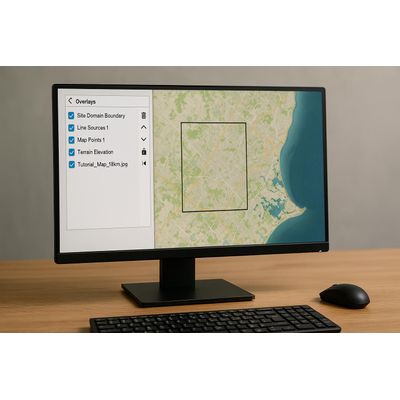
In Lakes Environmental Software, the drawing area displays all objects and layers. The Overlays tab in the Tree View provides control over which objects are displayed, layer order, and graphically editing for specific layers or objects.
Checked layers are shown in the drawing area, in the order they appear in the Overlays tab. For example, Site Domain Boundary placed on top, Tutorial_Map_15km.jpg on the bottom.
- Delete Selected to remove the selected layer quickly.
- Move Down / Move Up arrows to shift layers up or down for visibility. Layers can also be reordered by dragging the layer name.
- Uncheck All and Check All to hide or show all listed layers quickly.
- Disable Selection to prevent the selected layer from being selected in the drawing area, useful for large base maps. A disabled layer shows a lock icon.
- Disable Graphical Editing prevents the selected layer from being moved, resized, or deleted, while still allowing it to be selected for editing; it becomes locked graphically in the drawing area.
- Zoom to Overlay quickly zooms to the selected layer to locate specific model objects or map layers.
These controls provide granular management of display and editing within the drawing area, enabling efficient model development and quality control.
Original: https://www.weblakes.com/lakes-software-products-working-with-overlays/Most popular related searches